> ## Documentation Index
> Fetch the complete documentation index at: https://redo-44af351d-docs-returns-email-query-param.mintlify.site/llms.txt
> Use this file to discover all available pages before exploring further.
# Global-e
> Manage cross-border returns with Global-e for international shipping and duty recovery
export const integrationProvider_0 = "Global-e"
## What is Global-e?
Global-e is a cross-border e-commerce platform that manages international
shipping, taxes, duties, and currency conversion. It enables merchants to sell
and ship internationally while handling the complexity of localized pricing,
compliance, and logistics.
## What Does the Integration Do?
The Redo and Global-e integration handles several aspects of international
returns:
* **Return labels** — Redo uses Global-e's return labels (via DHL) so merchants
can participate in duty drawback programs to recoup duties and fees. Global-e
only offers this benefit when their return labels are used.
* **Country-based return fees** — Global-e charges different return fees based on
the customer's country, presented in the shopper's local currency.
* **Direct refunds** — Since payments for Global-e orders are not housed in
Shopify, Redo refunds directly through Global-e rather than through Shopify.
Exchanges are not recommended for international orders processed through
Global-e. If exchanges are offered, the merchant assumes full responsibility
for duties and fees and loses the cost recouping benefits of processing returns
through Global-e.
An order must have a status of **Dispatched** (equivalent to "fulfilled") in
Global-e before it can be returned.
## How to Set It Up
In the Redo merchant dashboard, go to **Settings** > **Returns & Claims** >
**Integrations**. Find the Global-e integration and click **Connect**.
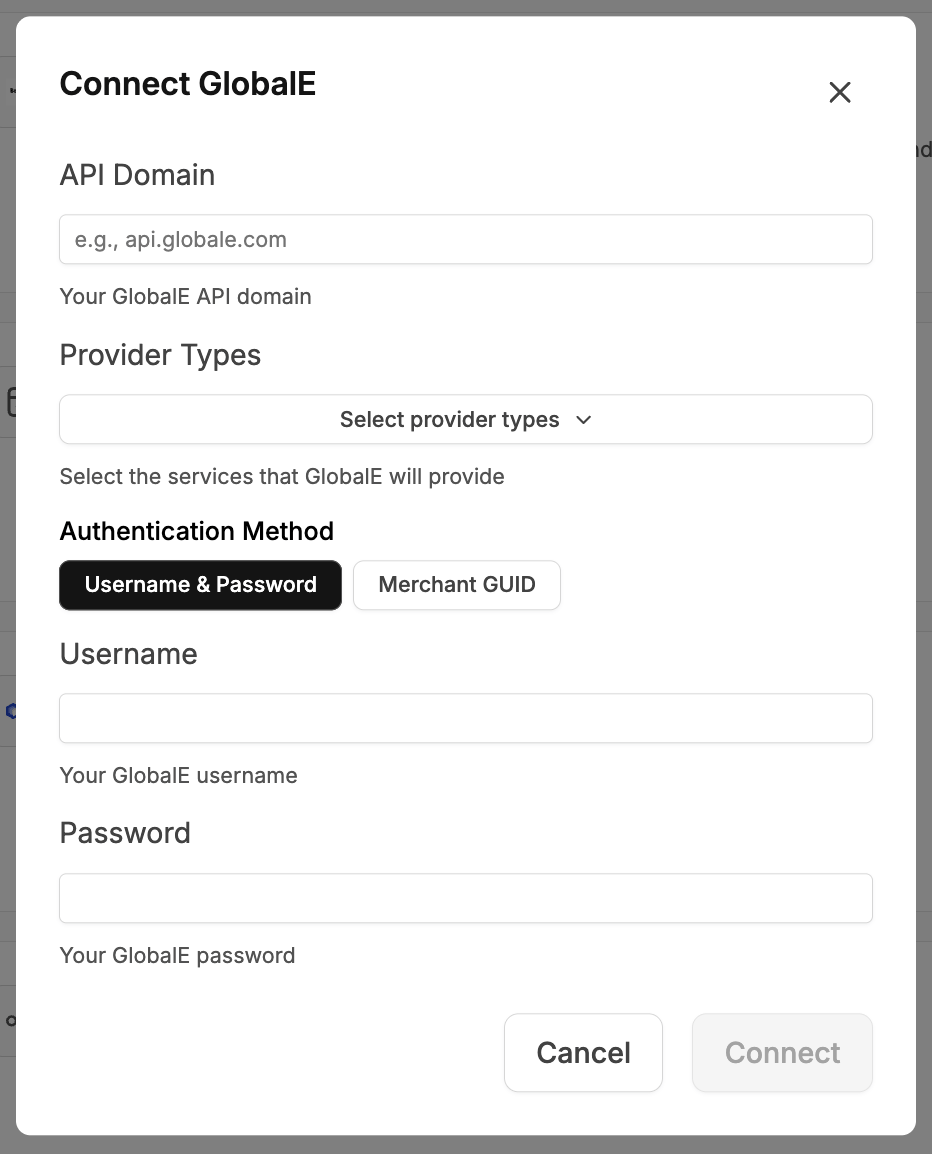 Enter your **Global-e API Domain** (e.g., `api.globale.com`).
Select the services that Global-e will provide for your store:
* **Refund** — Redo processes refunds directly through Global-e
* **Shipping** — Redo uses Global-e's return labels
You can select one or both depending on your needs.
Select your authentication method — **Username & Password** or **Merchant
GUID** — and enter your Global-e credentials.
Click **Connect** to complete the setup.
## Support
For issues with the Redo integration configuration, return processing, or data synchronization, contact **[support@getredo.com](mailto:support@getredo.com)**.
For issues with {integrationProvider_0} access, API credentials, or warehouse operations, contact your {integrationProvider_0} account manager or support team.
Enter your **Global-e API Domain** (e.g., `api.globale.com`).
Select the services that Global-e will provide for your store:
* **Refund** — Redo processes refunds directly through Global-e
* **Shipping** — Redo uses Global-e's return labels
You can select one or both depending on your needs.
Select your authentication method — **Username & Password** or **Merchant
GUID** — and enter your Global-e credentials.
Click **Connect** to complete the setup.
## Support
For issues with the Redo integration configuration, return processing, or data synchronization, contact **[support@getredo.com](mailto:support@getredo.com)**.
For issues with {integrationProvider_0} access, API credentials, or warehouse operations, contact your {integrationProvider_0} account manager or support team.